> For the complete documentation index, see [llms.txt](https://cortex-docs.paloaltonetworks.com/llms.txt). Markdown versions of documentation pages are available by appending `.md` to page URLs; this page is available as [Markdown](https://cortex-docs.paloaltonetworks.com/cortex-cloud-runtime-security/get-started/use-the-interface.md).
# Use the interface
Learn to navigate Cortex Cloud’s Command Center, Asset Inventory, dashboards, and Cases for cloud security.
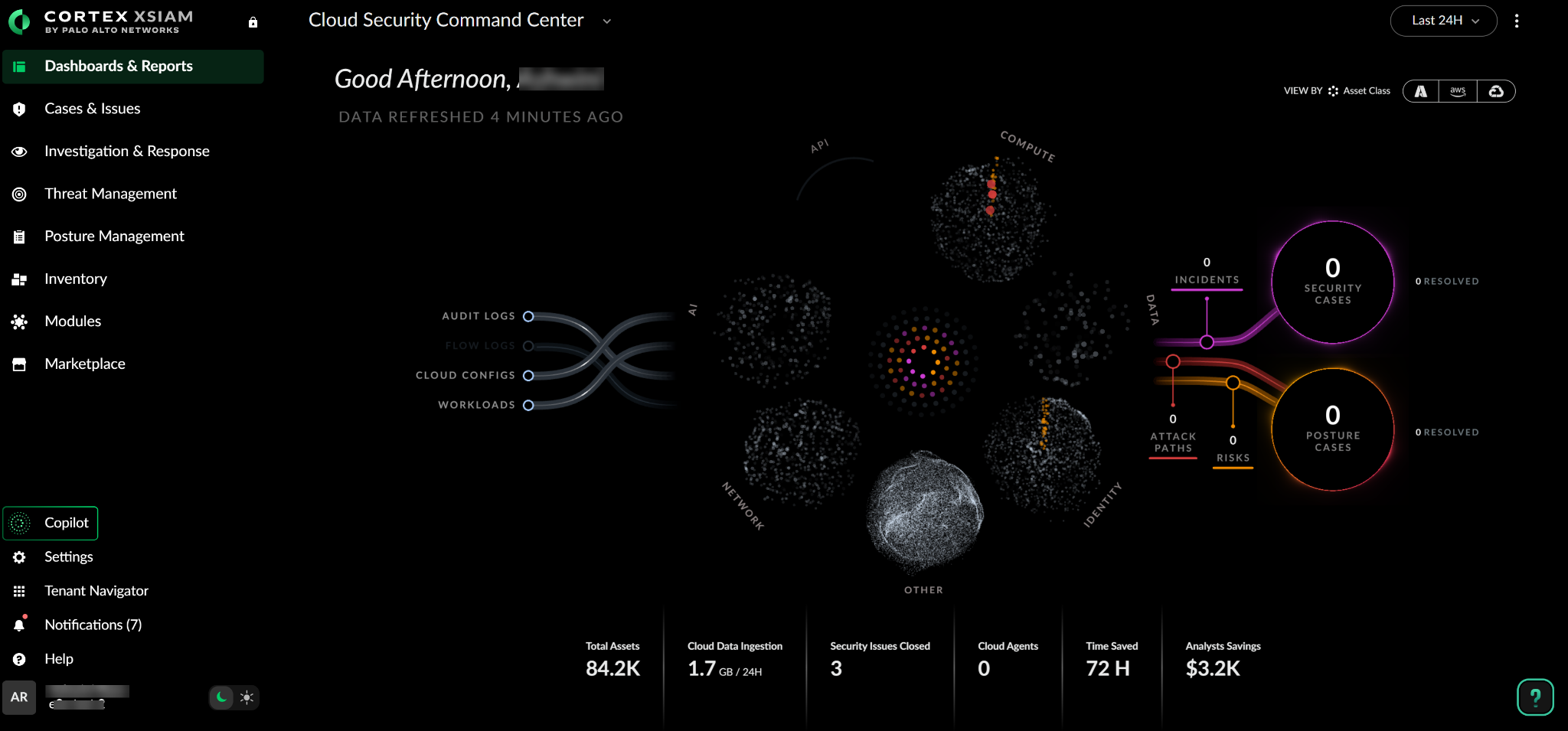
With Cortex Cloud you can see your cloud environment mapped in a more visual way to get a better understanding of your cloud estate. Once you log in to Cortex Cloud, the Cloud Security Command Center is displayed, which provides you with a bird’s eye view of your entire cloud ecosystem.
After you onboard your cloud or code providers, the data collected by Cortex Cloud is mapped into Asset groups.
* The different types of data being ingested such as, audit logs, configurations, data coming from workloads is displayed on the left.
* The breakdown of the different parts of your environment including:
* Compute (VMs, images, repositories)
* Data (databases, storage)
* Identities (human, non-human such as, service accounts), are displayed in the center.
* Finally, the several hundred posture risk issues that Cortex Cloud detected are now grouped into few Posture Cases that you can remediate are displayed on the right of the Command Center UI.
The Command Center also provides you details on the total number of assets in your environment, number of issues closed as well as the amount of time saved.
Cortex Cloud includes a unified **Asset Inventory**, which provides a complete list of your different assets in a single place. Here you can see your AI models and deployments, Applications, APIs, and all your Compute instances, Data assets, and Identities.

Select **View Dashboard** to get an in-depth view of all your assets.

Now that you have an overview of your environment and all the assets, you can navigate to **Cases** to view and resolve your issues as well as create a New Case.

Now that you have familiarized yourself with Cortex Cloud, consider taking the following actions to begin securing your cloud resources:
* Configure user roles and permissions
* Onboard your cloud accounts and data sources
* View dashboards and assets
---
# Agent Instructions
This documentation is published with GitBook. GitBook is the documentation platform designed so that both humans and AI agents can read, navigate, and reason over technical content effectively. Learn more at gitbook.com.
## Querying This Documentation
If you need additional information that is not directly available in this page, you can query the documentation by asking a question.
Perform an HTTP GET request on the following URL with the `ask` and `goal` query parameters:
```
GET https://cortex-docs.paloaltonetworks.com/cortex-cloud-runtime-security/get-started/use-the-interface.md?ask=&goal=
```
`ask` is the immediate question: it should be specific, self-contained, and written in natural language.
`goal` is what the user is ultimately trying to achieve, the reason they need the answer. Sharing it helps GitBook give you a better, more relevant answer. A goal is most helpful when it describes the outcome the user wants rather than restating the question. For example, with `ask=how do I create an API token`, a goal like `automate deployments from our CI pipeline` lets GitBook tailor the answer to that use case.
The response will contain a direct answer to the question and relevant excerpts and sources from the documentation.
Use this mechanism when the answer is not explicitly present in the current page, you need clarification or additional context, or you want to retrieve related documentation sections.