> For the complete documentation index, see [llms.txt](https://cortex-docs.paloaltonetworks.com/llms.txt). Markdown versions of documentation pages are available by appending `.md` to page URLs; this page is available as [Markdown](https://cortex-docs.paloaltonetworks.com/cortex-xsoar-8-on-prem/8.10/configure-cortex-xsoar/users-and-roles-management/user-group-management.md).
# User group management
Create user groups and assign roles and users in Cortex XSOAR 8.10 On-prem.
Users are assigned roles and permissions either by being assigned a role directly or by being assigned membership in one or more user groups. A user group can only be assigned to a single role, but users can be added to multiple groups if they require multiple roles. You can also nest groups to achieve the same effect. Users who have multiple roles through either method will receive the highest level of access based on the combination of their roles.
For example:
* Joe has an Analyst role and is a member of the Tier-1 Analyst user group, which is assigned the Triage role. Joe has the permissions of the Analyst role and the Triage role. Joe is assigned 2 roles, and has the highest permission based on the combination of both roles.
* John is a member of two user groups - Tier-1 Analyst and Tier-2 Analyst. One group is configured to use the Triage role and the other group is configured to use the Incident Response role. John is assigned both roles and has the highest permissions based on the combination of all roles.
* Jack is a member of the Tier-2 user group which has an Incident response role. This user group is included in a Tier-3 user group (Threat Hunter role), added as a nested group. Jack is assigned both roles and has the highest permissions based on the combination of all roles.
On the **User Groups** page, you can create a new user group for several different system users or groups. You can see information including the details of all user groups, the roles, nested groups, IdP groups (SAML), and when the group was created/updated.
You can also right-click in the table to edit, save as a new group, remove (delete) a group, and copy text to the clipboard.
How to create a user group
1. Go to Settings & Info → Settings → Access Management → **User Groups**.
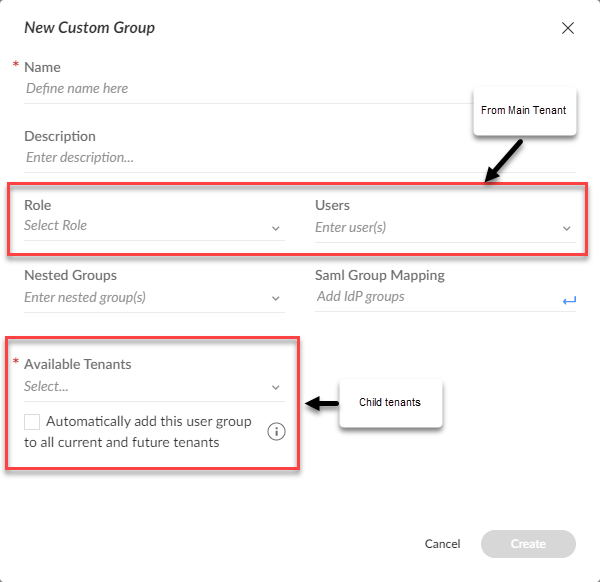
2. To create a new user group for several different system users or groups, click **New Group**, and add the following parameters:
| Parameter | Description |
| -------------------------------------------------------------- | ----------------------------------------------------------------------------------------------------------------------------------------------------------------------------------------------------------------------------------------------------------------------------------------------------------------------------------------------------------------------------------------------------------------------------------------------------------------------------------------------------------------------------------------------------------------------------------------------------------------------------------------------------------------------------------------------------------------------------------------------------------------------------------------------------------------------------------------------------------------------------------------------------------------------------------------------------------------------------------------------------------------------------------- |
| Name | Name of the user group. |
| Description | Description of the user group. |
| Role | Select the group role associated with this user group. You can only have a single role designated per group. |
| Users | Select the users you want to belong to this user group.
Note
If users have been created locally, but you want them to access the tenant through SSO only, skip this field and add only SAML group mapping after SSO is set up, otherwise, users can access the tenant through their username and password and and through SSO.
If you have not yet created any users, skip this field and add them later. See Set up authentication.
Lists any nested groups associated with this user group. If you have an existing group you can add a nested group.
User groups can include multiple users and nested groups, which inherit the permissions of parent user groups. The user group will have the highest level of permission.
For example:
- Group A has Tier-1 Analyst permissions
- Group B has Tier-2 Analyst permissions
If you add Group A as a nested group in Group B, Group A inherits Group B's permissions (Tier-1 and Tier-2 permissions).
|
| SAML Group Mapping | Maps the SAML group membership to this user group. For example, you have defined a Cortex XSOAR Admins group. You need to name this group exactly how it appears in Okta.
You can add multiple groups by separating them by a comma.
Note
When using Microsoft Entra ID for SSO, the SAML group mapping needs to be provided using the group object ID (GUID) and not the group name.
If you have not set up SSO in your tenant, skip this field and add it later. After you have added it, follow the procedure relevant to your IdP. For example, see Task 8. Map SAML Group Memberships to Cortex XSOAR User Groups.
|
| Available Tenants
(Only available in Main Tenant)
| Displays the list of child tenants that are paired with the Main Tenant.
Users and roles in the child tenant are updated from the Main Tenant only when the user group created includes the child tenant and the role and user defined in the Main Tenant.
Note
User groups created on the Main Tenant, cannot be edited or deleted from the child tenants.