> For the complete documentation index, see [llms.txt](https://cortex-docs.paloaltonetworks.com/llms.txt). Markdown versions of documentation pages are available by appending `.md` to page URLs; this page is available as [Markdown](https://cortex-docs.paloaltonetworks.com/cortex-xsoar-8-on-prem/8.7/onboard-cortex-xsoar/cortex-xsoar-installation/update-cortex-xsoar.md).

# Update Cortex XSOAR

Once Cortex XSOAR is installed and running, you can update the version from the Cortex XSOAR UI. If you encounter issues running the current version, you can update the version from the textual UI menu.

{% hint style="info" %}

### Note

Version upgrades include operating system patches.
{% endhint %}

### Update from Cortex XSOAR

Cortex XSOAR checks several times a day to determine whether there is a new version available and downloads an update file if it is available. If the update file of the new version of the tenant was downloaded successfully to the tenant, an update notification appears in the left menu pane for all admin users. Only administrators receive the update notifications and can perform an update.

The notification indicates the new version number that is available and contains a link that opens the **About** page.

<div align="left"><img src="/files/Ikuuypw1elwmRdeuiDPy" alt=""></div>

You can hide the notification in the main pane for your user so that the next time you log in to the tenant, the notification in the menu pane will not appear until a different new version is available. If a different user logs in to the tenant, the notification will appear. However, the update icon will still appear next to the user's **About** option providing you with the ability to update the version.

{% hint style="info" %}

### Note

When upgrading Cortex XSOAR you update every version consecutively. For example, if you have installed version 8.5, you update to 8.6 and then 8.7. After you update to version 8.6, you will receive a notification for the next version.

After updating, you can't rollback to a previous version.
{% endhint %}

1. In the Cortex XSOAR left menu pane, click **Details** in the update notification, or go to **\<Your Username>** → **About**.

   The **About** page appears with a new banner that indicates that an update is available with the new version number.
2. Click **Continue**.

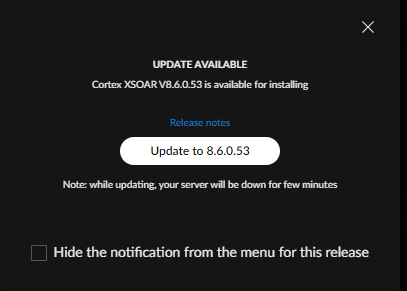
   An **Update Available** message appears.

   <div align="left"><img src="/files/A8YMRvBpgR3vVymd3gcN" alt=""></div>
3. If you are not going to update now, you can click the **Hide the notification from the menu for this release** to hide the update notification for this version. The next time you log in to the tenant, the notification will not appear in the main menu of the UI, but an icon will appear in the About option.
4. Click **Update to \<version number>** to proceed with the update process.

   A message appears indicating that the system will be down while the data and settings are updated.
5. Click **Update Now**. When the update is done, if this is a major release, a new version message appears.

### Update from the textual UI

1. If the textual UI is not already open, either launch the web console from your VM or SSH log in from an external terminal.

   ![](/files/CuvfNx6B97iAOwnSNEMq)
2. To update to a new version, in the textual UI menu, select **Cluster Upgrade**.
3. Enter the **Upgrade Version**.

   <div data-gb-custom-block data-tag="hint" data-style="info" class="hint hint-info"><h3>Important</h3><p>Ensure the version syntax and numbering is correct. For example, <code>master-8.7.0-8.7.0.62-dadf65c3</code>.</p></div>
4. Select **Upgrade**.

   When you select **Upgrade**, after the upgrade tasks run an **Upgrade completed successfully** message displays. However, you need to wait until the upgrade process fully completes (approximately 30 minutes) and then check that you can open the Cortex XSOAR UI.


---

# Agent Instructions
This documentation is published with GitBook. GitBook is the documentation platform designed so that both humans and AI agents can read, navigate, and reason over technical content effectively. Learn more at gitbook.com.

## Querying This Documentation
If you need additional information that is not directly available in this page, you can query the documentation dynamically by asking a question.

Perform an HTTP GET request on the current page URL with the `ask` query parameter, and the optional `goal` query parameter:

```
GET https://cortex-docs.paloaltonetworks.com/cortex-xsoar-8-on-prem/8.7/onboard-cortex-xsoar/cortex-xsoar-installation/update-cortex-xsoar.md?ask=<question>&goal=<endgoal>
```

`ask` is the immediate question: it should be specific, self-contained, and written in natural language.
`goal` is optional and describes the broader end goal you are ultimately trying to accomplish on behalf of the user. GitBook uses it to tailor the answer towards what is most useful for that goal.

The response will contain a direct answer to the question and relevant excerpts and sources from the documentation.

Use this mechanism when the answer is not explicitly present in the current page, you need clarification or additional context, or you want to retrieve related documentation sections.